SQL Basics with SQLite
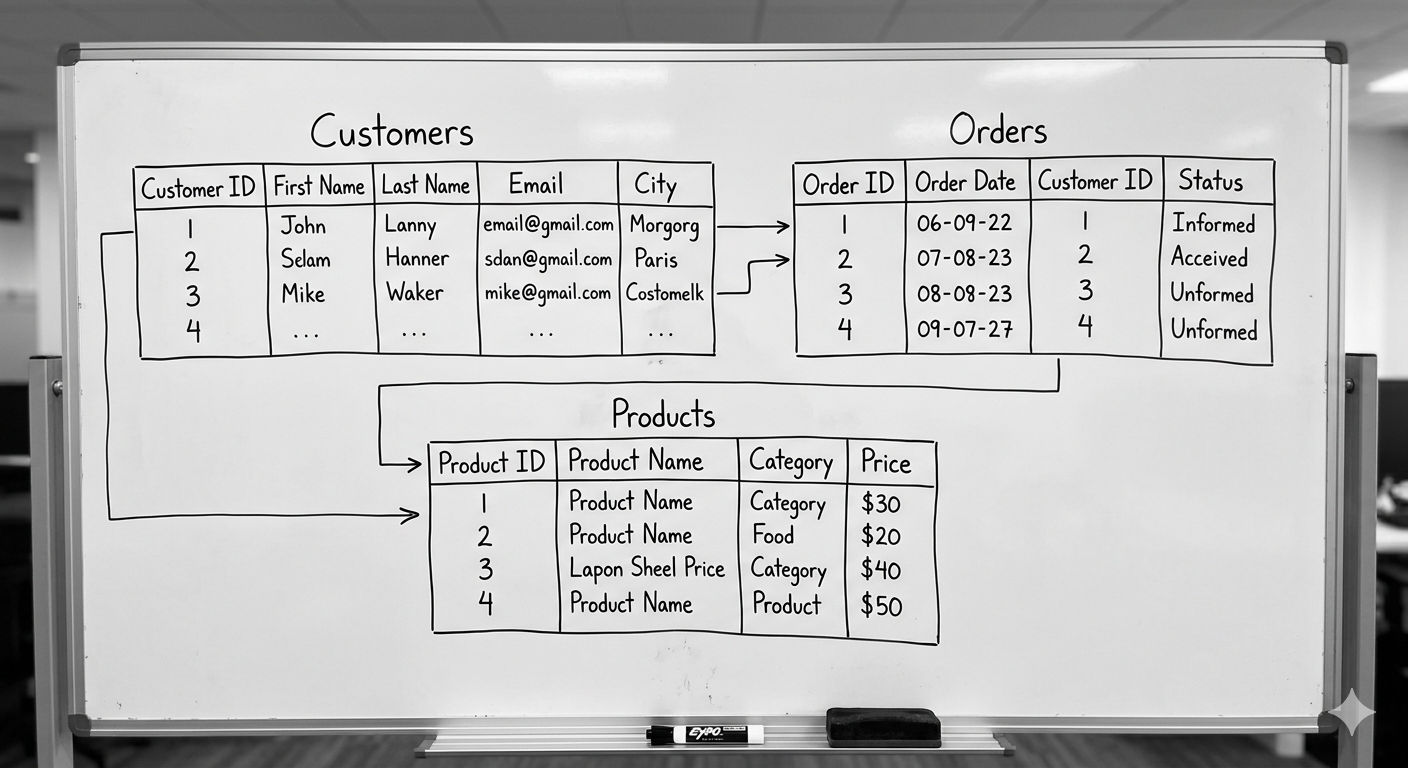
What is a database?
In simple terms a database is an organized collection of data.
In that sense this table can be considered a database since you are able to organize and save data.
Employees table
| employee number | employee name | employee salary | position | department | |
|---|---|---|---|---|---|
| 1 | John Doe | 4,000.5 | john.doe@mail.com | Developer | IT |
| 2 | Marie Doe | 6,050.9 | marie.doe@outmail.com | Recruiter | HR |
| 3 | Liam Smith | 10,000.00 | liam.smith@email.com | Sales Representative | Sales |
You can do several things in this table like see the records, remove a worker in case someone leaves the company, update the salary in case someone gets a raise and add new records to the table.
The reason to have a database is to be able to have a lot of data in a single place where you can check relevant information.
When talking about software, databases are used to store information that needs to be remembered and tracked. For example, social networks use databases to save your email and password so the app can recognize you and let you log into your account later.
Databases in software can be split in 2 types:
- Relational databases
- Non-relational databases
Let’s focus only on Relational databases.
In relational databases, data is stored inside tables. A single database can contain many different tables, each one used to organize a specific type of information. Each row stores one item, and each column stores a specific piece of information about that item.
Let’s suppose we have an ecommerce app so we need to save users and products available so it would look like this:
Database
│
├── users
│   ┌────┬─────────┬─────────────────────┐
│   │ id │ name    │ email               │
│   ├────┼─────────┼─────────────────────┤
│   │ 1  │ Alice   │ alice@email.com     │
│   │ 2  │ Bob     │ bob@email.com       │
│   └────┴─────────┴─────────────────────┘
│
└── products
    ┌────┬──────────┬───────┐
    │ id │ name     │ stock │
    ├────┼──────────┼───────┤
    │ 1  │ Keyboard │ 5     │
    │ 2  │ Mouse    │ 10    │
    └────┴──────────┴───────┘
As you can see, the database contains two separate tables: one for users and one for products. Each table organizes a different type of information, but they both live inside the same database.
Database Management System
In software there is something known as Database Management System also known as DBMS, this kind of software allows you to create a database in your computer but to be able to use this software you need to learn how to use it and how to talk to it.
To be more specific there are 2 kinds of DBMS:
- RDBMS: Used for Relational databases — We are going to focus on this.
- NoSQL DBMS: Used for Non-relational databases (MongoDB, Redis, etc.)
There are several RDBMS but the most common and open source are:
To be able to use these RDBMS it is important to know how to give instructions on how to do things like read data, update data, etc.
Structured Query Language
The way to give instructions to a RDBMS is using something known as Structured Query Language (SQL).
SQL is an official standard, but every RDBMS adds its own features, syntax, and functions. If you learn SQL generally, you can work with almost any RDBMS, but you usually need to learn the specific dialect too.
Data types
In SQLite the data types are:
| SQL type | What it stores | Example |
|---|---|---|
| INTEGER | Whole numbers | 1, 42, 1000 |
| REAL | Decimal numbers | 4000.5, 3.14 |
| TEXT | Text / strings | ’John’, ‘IT’ |
| BLOB | Binary data (files) | images, documents |
In other RDBMS you might see more and other data types but in general the way you declare a data type is the same as SQLite.
Downloading SQLite
To be able to run SQL code you need to download a RDBMS. I am going to use SQLite because it is really easy to use for a beginner. Go to this SQLite page and download and extract SQLite.
When you extract SQLite you should see something like this:
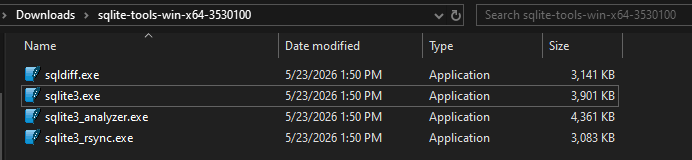
Before running you need to know the path of the SQLite file, since mine is in the downloads folder this is the path:
C:\Users\User\Downloads\sqlite-tools-win-x64-3530100
To be able to run SQLite you will have to open the CMD or Terminal and move to the path where SQLite is saved:
cd C:\Users\User\Downloads\sqlite-tools-win-x64-3530100Once you are in that folder you have to run this command.
sqlite3 mydatabase.dbYou should see something like this:

if you notice, you will see there is another file that was created with the name of your database in this case: mydatabase.db next to the files you have downloaded.
Now you have SQLite running and you can create a table.
Creating a table
To create a table in SQL you use the CREATE TABLE statement. You define the table name and each column with its data type.
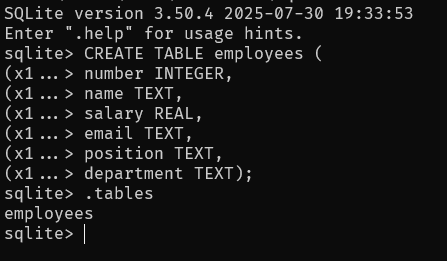
Using the employees table as an example it would look like this:
CREATE TABLE employees (
    number INTEGER,
    name TEXT,
    salary REAL,
    email TEXT,
    position TEXT,
    department TEXT
);
I want you to notice that employees is the name of the table and name, salary, email, position, department are the columns, the text INTEGER, TEXT, REAL next to the columns are the data types.
After you run this, you can type .tables and you should see the table employees:
Inserting data
To add rows to a table you use the query: INSERT INTO <your table> (column1, column2, column n... ) VALUES (value1, value2, value n...):
Following the example above, to insert the 3 employees you need to run 3 queries with the values for each employee:
INSERT INTO employees (number, name, salary, email, position, department)
VALUES (1, 'John Doe', 4000.5, 'john.doe@mail.com', 'Developer', 'IT');

INSERT INTO employees (number, name, salary, email, position, department)
VALUES (2, 'Marie Doe', 6050.9, 'marie.doe@outmail.com', 'Recruiter', 'HR');

INSERT INTO employees (number, name, salary, email, position, department)
VALUES (3, 'Liam Smith', 10000.0, 'liam.smith@email.com', 'Sales Representative', 'Sales');
Notice that the columns and the values are in the same order. Using the insertion of Liam as an example the order is:
column1 - number   column2 - name        column3 - salary     column4 - email
         ↓                  ↓                    ↓                     ↓
value1 - 3         value2 - Liam Smith   value3 - 10000.0     value4 - 'liam.smith@email.com'
Reading data
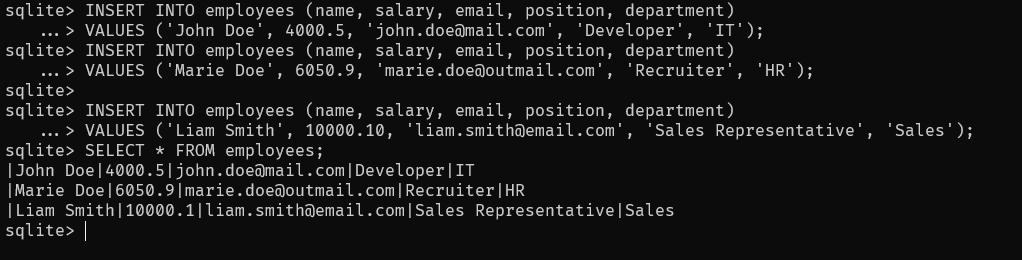
To read data from a table you use SELECT * FROM <table name>. The * means “all columns”:
SELECT * FROM employees;You should see this:
You can also select only specific columns separated by comma ,:
SELECT name, salary FROM employees;
Updating data
To change existing data you use UPDATE <table name> SET <column_name> = <new_value>.
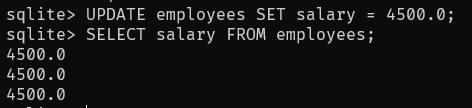
UPDATE employees SET salary = 4500.0;You can notice that it updated every single employee to 4500.0, that’s expected.
Deleting data
To remove a row you use DELETE FROM.
DELETE FROM employees;Again, you can notice that UPDATE and DELETE were applied to everything in the table.

CRUD Operations
What you just learned are named CRUD Operations and CRUD stands for the four basic operations performed on data in most applications and databases:
| Operation | Meaning | SQL Example |
|---|---|---|
| Create | Add new data | INSERT |
| Read | Retrieve data | SELECT |
| Update | Modify existing data | UPDATE |
| Delete | Remove data | DELETE |
If you read the red words from top to bottom it says CRUD.
These 4 operations are the foundation of everything you will do with a database.
WHERE clause
So far the UPDATE and DELETE examples affected every row in the table. In practice you almost always want to target a specific row. That is what WHERE is for — it lets you filter which rows a query applies to.
You can use WHERE with SELECT, UPDATE, and DELETE:
Since the employees table is now empty, add the employees again:
INSERT INTO employees (number, name, salary, email, position, department)
VALUES (1, 'John Doe', 4000.5, 'john.doe@mail.com', 'Developer', 'IT');

INSERT INTO employees (number, name, salary, email, position, department)
VALUES (2, 'Marie Doe', 6050.9, 'marie.doe@outmail.com', 'Recruiter', 'HR');

INSERT INTO employees (number, name, salary, email, position, department)
VALUES (3, 'Liam Smith', 10000.0, 'liam.smith@email.com', 'Sales Representative', 'Sales');
Now you can test the WHERE clause:
SELECT * FROM employees WHERE department = 'IT';

UPDATE employees SET salary = 4500.0 WHERE name = 'John Doe';
We were able to get only the employees from the IT department, and the salary for John Doe was updated from 4000.5 to 4500.0.

Deleting is one of the most dangerous operations, so always use WHERE.
DELETE FROM employees WHERE name = 'Liam Smith';Before running the delete, take a look at the current rows to see what you want to remove. Then run the delete query and run a SELECT again to confirm the record is gone.
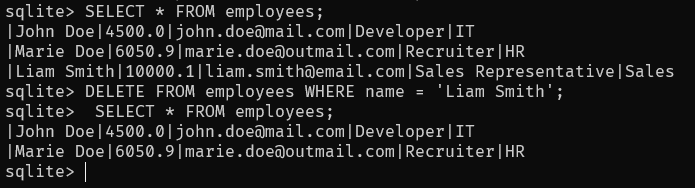
Now you know how to target specific rows instead of affecting the entire table. This is one of the most important habits to build when working with databases.